| ID |
Date |
Author |
Type |
Category |
Subject |
|
90
|
Tue May 2 17:03:14 2023 |
Jon, Cao | Physics | VAC | First pump-down test of vacuum chamber |
[Jon, Cao]
1. Re-routing of cables
We re-routed the connections between the turbo pump and its fan to the controller. Instead of going through the side of the server rack, they are now routed along the the cable tray and came down from the top of the server rack.
2. Planning for vacuum assembly re-configuration
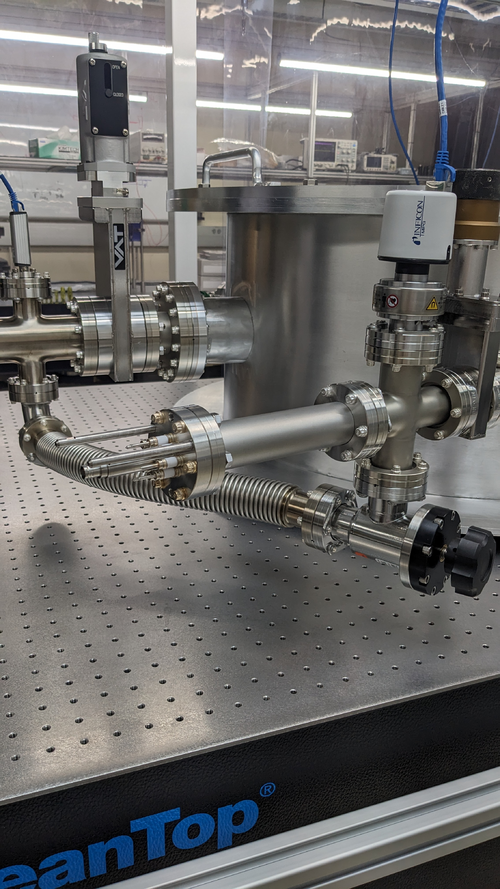
While preparing for our first pump-down, we notices that RGA pump line gate valve, at its fully closed position, is higher than the height of the chamber lid. The full range gauge attached to the RGA line, while not that high, can also cause obstruction during removal/ installation of the vacuum lid. The calibrated leak, eventhough is now running within the perimeter of the optical table, it stills introduce weak points that are susceptible to damage if personnel installing chamber lid may lean onto it. Thus we made a few suggested modification to the vacuum chamber assembly:
- Move the entire RGA arm to the mirrored CF port, where the Up-to-Air valve is at
- Move the Up-to-Air valve to the calibrated leak port
- Move the calibrated Ar leak the main chamber full-range gauge port
- Move the full-range gauge to the RGA line port
3. First test pump-down
- With all valves closed, we started scroll pump, pump line quickly got down to 6.08 mbar from atmospheric 1000 mbar (measured by Pirani gauge, channel 3 on controller )
- We open Lesker angled valve and let the RGA arm pumped down, Pirani gauge read 6.3 mbar while the full-range guage on RGA line reads 4.9 mbar ( channel 1 on controller )
- We open the pump line gate to expose the pump to the main volume, all gaugues readout immediate rise back up 1000 mbar. After 3 minutes, we started to see channel 3 slowly dropped down. A minute later channel 1 and 2 (main body) also dropped down. The slow pressure dropping speed and 6.3 mbar measured earlier got us suspected that there is some large leaks
- We proceed to tighten all the ports as the vacuum is pumped down. In particular, we found that large feedthrough port still required a lot of tightening up
- As we tighten up all the ports, after 40 minutes, the gauges are now
- Channel 1 : RGA line full-range gauge: 2.55E-1 mbar
- Channel 2 : Main chamber full-range gauge: 2.60E-1 mbar
- Channel 3 : Pump line Pirani gauge: 2.94E-1 mbar
Compare this to the scroll pump manual , Table 1, page 3, the ultimate pressure of the scroll pump is 2.5E-1 Torr (3.3E-1 mbar), we thus managed to achieve scroll pump ultimate pressure
- Turn on turbo pump : Change turbo pump controller from REMOTE to FRONT PANEL mode by pressing both "COUNTERS" and "MEASURE" buttons at the same time, select "MODE=FRONT"
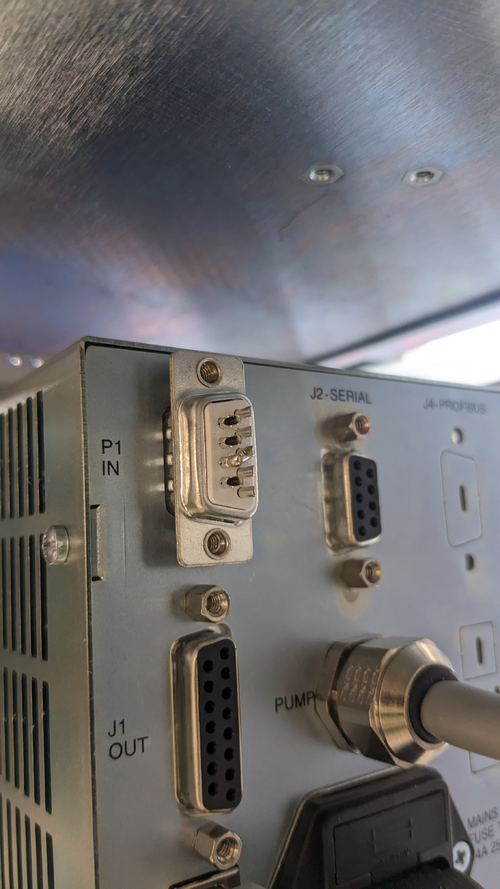
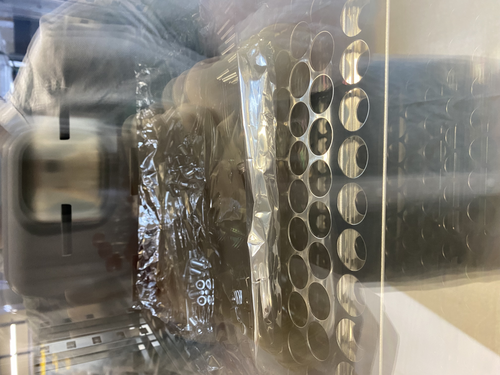
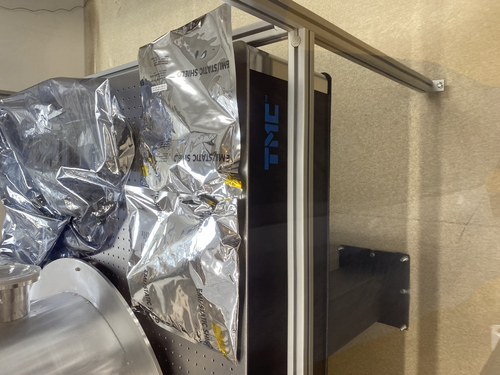
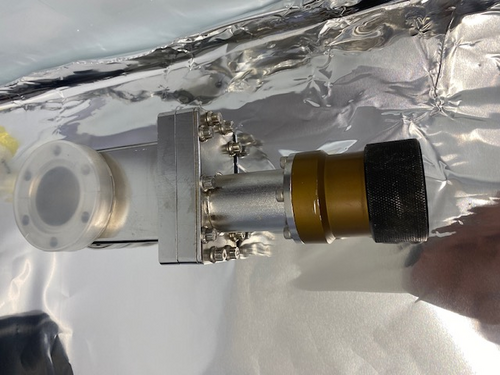
- Shorting interlock pin: since we do not have an interlock signal for the controller, use the provided DB-9 connector that has pin 3 and 8 shorted and connect this to the P1 IN connection at the rear of the controller (see attachment 1 )
- Press "START" on the controller to start the turbo pump
- The pressure readout from the gauges quickly dropped down. After 3 minutes, the Pirani range is maxed out at 0.5E-3 mbar. After 20 minutes, we recorded the following values:
- Channel 1 : RGA line full-range gauge: 1.50E-5 mbar
- Channel 2 : Main chamber full-range gauge: 1.89E-5 mbar
- Channel 3 : Pump line Pirani gauge: 5.0E-4 mbar
This is Medium vacuum , we want to further reduce this by 2 orders of magnitude. However, we can run RGA test + helium leak test at this pressure
- Turn off turbo pump, wait for 10 minutes, turn off scroll pump, open Up-to-Air valve, all pressure gauges indicated pressure returned back to atmospheric pressure
3. To-do actions
- Run RGA test to get information about contamination status of vacuum
- Implement suggested changes in section 2
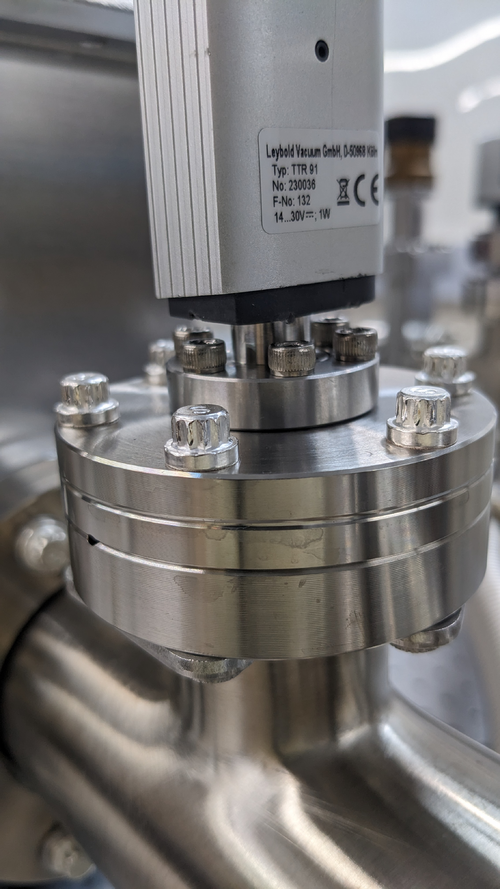
- Check and modify suspected poor connection: Pirani gauge on pump line. A gap can be seen between connection. There's no good way to tighten it with the screw. Maybe use threaded pin + hex bolt?
- Controller communications
|
| Attachment 1: PXL_20230502_203343616.jpg
|
|
| Attachment 2: PXL_20230502_210234897.MP.jpg
|
|
|
89
|
Tue May 2 15:55:33 2023 |
Peter | Update | VLC Electronics | 532nm Intensity Measurement |
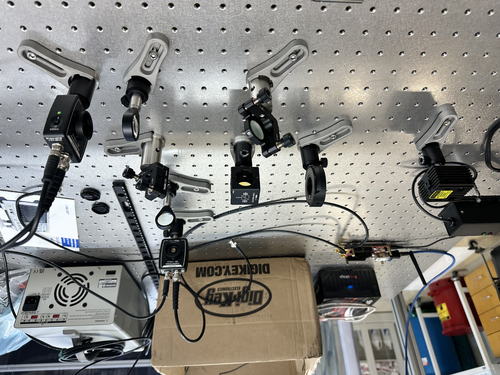
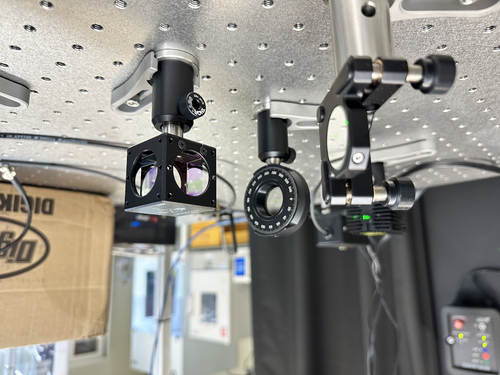
| I changed the 1/2 wave plate from the lens mount to the rotational optic mount. This allowed me to rotate the 1/2 wave plate, which changed the respective polarization power transmitting through S and P polarization. Initially, more power was coupled into the P polarization. Now, with the 1/2 plate rotated, both channels are experiencing the same voltage reading. Before feeding the PDA signals into the red pitaya, a 50 ohm terminator had to be placed at the SMA connection port so that the input power into the red pitaya did not exceed 1V. With this configuration, both channels experience about 0.35mV. (See attached)
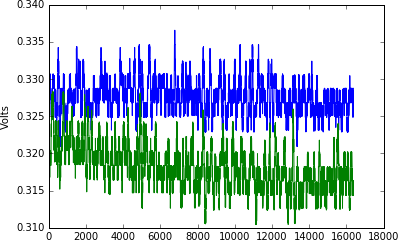
I then opened the Jupyter notebook, and ran a demo time series measurement from the red pitaya. This time, I was able to get a plot featuring both channels (green is P polarization. Blue is S polarization). The plots are consistent with what is shown in the red pitaya oscilloscope. However, the time collection (I'm assuming) only runs for about 0.018s. I will have to write some of my own code to loop over this measurement, and collect more data. |
| Attachment 1: IMG-0221.jpg
|
|
| Attachment 2: IMG-0222.jpg
|
|
| Attachment 3: graphs(1).jpg
|
.jpg.png "graphs(1).jpg")
|
| Attachment 4: Time_Series_Trial_2.png
|
|
|
88
|
Mon May 1 18:56:57 2023 |
Peter | Update | VLC Electronics | 532nm Intensity Measurement |
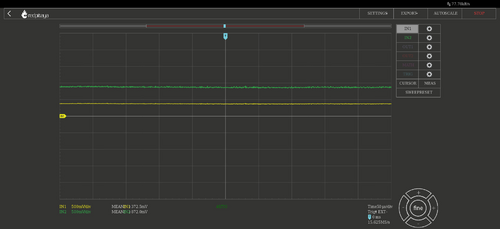
| I've configured the two PDA's to the Red Pitaya. I put a 50 ohm resistor connector to each red pitaya input port. This was because the oscilloscope showed that the voltage reading from the P polarization PDA was almost at 1V, which was the limit of the red pitaya. Once both S and P polarization PDA's were connected, I opened the red pitaya's oscilloscope. A screenshot of the voltage readings is shared below. Channel 1 (Yellow) is for S polarization. Channel 2 (Green) is for P polarization. It would seem that there is a significant amount of polarization in the P direction as opposed to the S direction.
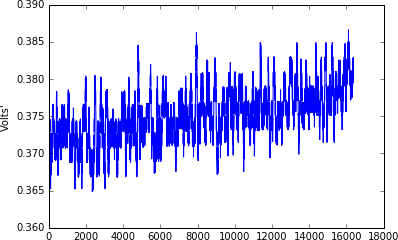
I then tried running the template time series measurement within the python notebook from channel 1 only. The python notebook graph is shown below. I have not figured out what are the units of time on the x axis, and I have not figured out how to change the amount of time that the red pitaya takes data. A plot of the time series measurement is shown below. |
| Attachment 1: graphs.jpg
|
|
| Attachment 2: Time_Series_Trial_1.png
|
|
|
87
|
Mon May 1 17:10:25 2023 |
Julian, Cao | Physics | VAC | Installing Pirani gauge and RGA probe onto to vacuum chamber |
[Julian, Cao]
- 03:00 pm: Particle count
- : Zone 3
- 0.3 um: 498
- 0.5 um: 124
- 1 um: 124
- : Zone 4
- 0.3 um: 748
- 0.5 um: 457
- 1 um: 374
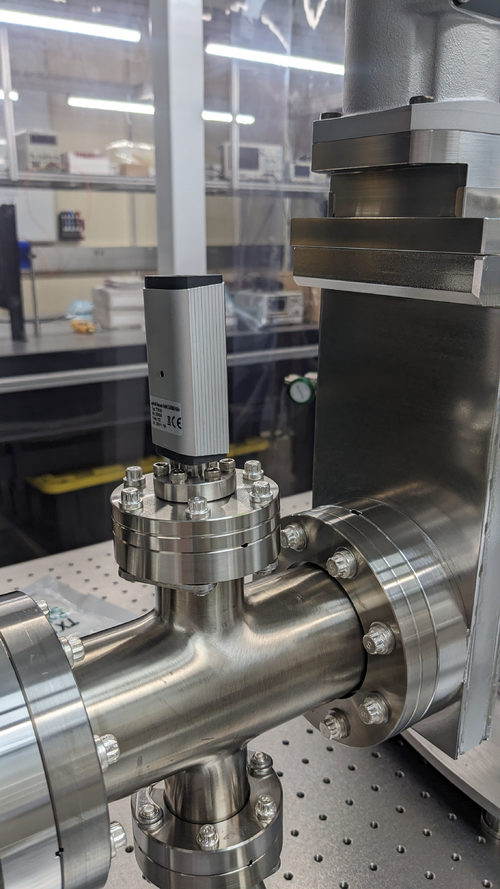
- 03:32 pm: Installing Pirani gauge onto pump line
- 03:51 pm: Finish installing Pirani gauge, start installing RGA probe
- 04:03 pm: Finish installing PRGA probe, start routing cable from gauge controller to Pirani gauge
- 04:30 pm: All ethernet cables are routed and connected to gauge controllers
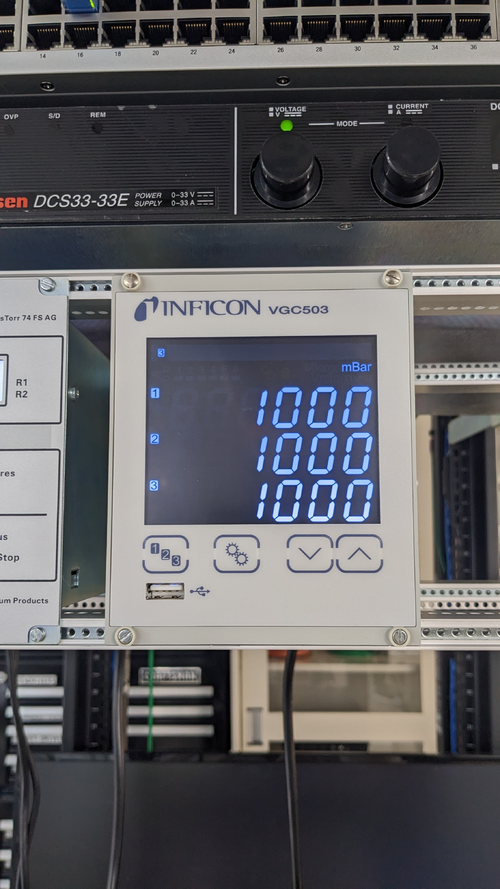
- 04:48 pm: Power gauge controller up, all gauges are recognised and readout shows atmospheric pressure as expected (1000 mbar)
- 04:51 pm: End-of-work particle count
- : Zone 3
- 0.3 um: 1413
- 0.5 um: 872
- 1 um: 623
- : Zone 4
- 0.3 um: 374
- 0.5 um: 166
- 1 um: 166
We also closed all the valves so we can start testing vacuum pump down of isolated volume tomorrow.
|
| Attachment 1: PXL_20230501_225241491.jpg
|
|
| Attachment 2: PXL_20230501_235854958.jpg
|
|
| Attachment 3: PXL_20230501_234750795.MP.jpg
|
|
|
86
|
Fri Apr 28 19:39:19 2023 |
Cao | Summary | General | Clean and Bake Leybold TTR 91 Pirani Gauge |
| Quote: |
| I took batch 12 out of the oven and put them in a bag and placed the bag inside the clean room in the first large stainless steel container.
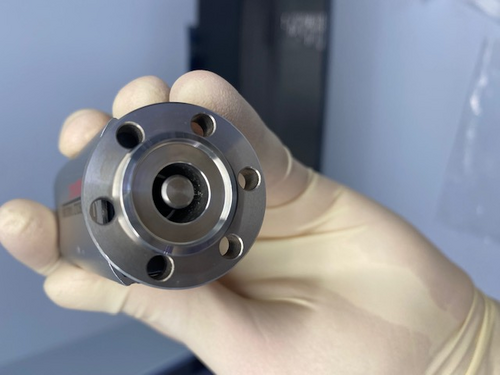
I also looked at the small gauge that we felt like needed to be baked and I can confirm that without further cleaning around the inside of the gauge it should not be connected to the main vacuum. I have attached a photo of the inside of the gauge. |
Following the problem with contamination particles observed in the the Leybold thermovac TTR 91, we have taken the following step to clean the gauge:
- Wipe with IPA-wetted Vectra Alpha: Cover the tip of a ziptide with Vectra Alpha wipe corner that has been wetted with IPA, push the wipe around and remove visible particulates
- Fill the gauge flange with IPA: (following Jon's recommendation to use Lesker's procedure for cleaning their Pirani gauge), flip the gauge up such that the CF flange points upward, fill the flange with IPA all the way up. Use the tip of a SSTL tweezer to agitate the IPA. Let it sits for 20 minutes, agitate every 5 minutes. After 20 minutes, pour the IPA out then spray with dry pure nitrogen
- Passive drying : Let the gauge sit inside the flowbench for 3 hours (3:30 pm to 6:30 pm)to ensure all IPA has evaporated
- Baking : Leave the gauge in oven at 50 degree C for 48 hours (maximum allowed temperature is 65 deg C, we use 50 deg C to ensure we are well below this limit). Baking started at 7pm, should finish on Sunday 7pm and ready for assembling to vacuum chamber on Monday morning
|
|
85
|
Fri Apr 28 19:00:13 2023 |
Cao | Physics | VAC | Tighten CF ports on vacuum chamber |
| [Cao]
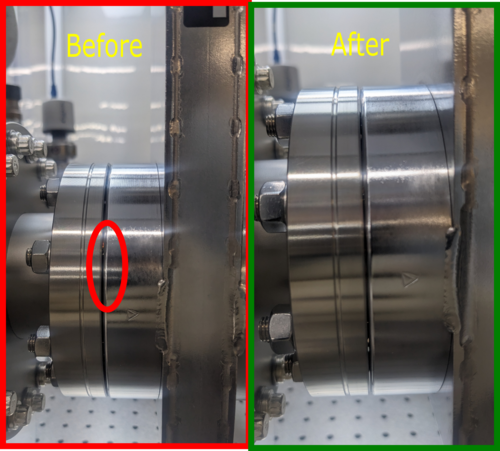
After Jon's comment yesterday that some of the connection did not seem to have good metal-metal contact, in particular the gate valve connection, I went through the ConFlat connections today and retighten them.
I found a lot of the CF connections are not particularly tightened and there were a lot of range left that can be tightened with the wrench. After re-tightening, the copper gaskets are not visible anymore. For example, see the attached images for the difference before and after tightening.
Note for future installation of CF
- After tightening the bolts/ screws in jumping order (to provide uniform torque) and there is resistance appearing in further tightening, start going through each screw/ bolts in a direction, each time applying a small torque until it resists to further tightened
- After each time going all the bolts/ screw and returning to the starting point, one will find they can further tighten the screws/ bolts. Repeat the process until no further tightening can be achieved
- The copper gasket should not be clearly visible at the connection
|
| Attachment 1: TightenCF.png
|
|
|
84
|
Fri Apr 28 18:16:57 2023 |
Cao | Physics | VAC | Grounding vacuum system |
| Quote: |
This afternoon I made up a green 10 AWG grounding cable and connected it to the vacuum system.
One end is tightly connected to the bottom flange of the vacuum chamber (photo 1). It is run along and up the table framing to the top of the cleanroom, where it exits into the overhead cable tray in the same location as the other power cables. It drops down from the top of the server rack all the way to the bottom, where the other end is connected to the lab's electrical ground in the rear of the 240 V UPS (photo 2).
The connections were confirmed to be secure, but continuity testing with an ohmmeter remains to be done to confirm that the chamber and tabletop are indeed grounded. |
[Cao]
Continuity Test
Following from Jon's grounding work on the vacuum system, I did a continuity test with the afternoon with a multimeter. The chamber is indeed grounded:
- Chamber wall to optical table: continuity confirmed, resistance: 0 Ohm
- Chamber wall to ground point connection on chamber: continuity confirmed, resistance: 0 Ohm
- Turbo pump to ground point connection on chamber: continuity confirmed, resistance: 0 Ohm
- Turbo pump to optical table: continuity confirmed, resistance: 0 Ohm
- Optical table to chassis frame outside cleanroom: continuity confirmed, resistance: 0 Ohm
- Front of chassis frame to earth point: continuity confirmed, resistance: 0 Ohm
|
|
83
|
Fri Apr 28 11:21:01 2023 |
Peter | Update | VLC Update | Laser intensity/polarization drift measurements |
| The Digi-key cables have arrived, and I have began implementing them in the intensity drift measurements.
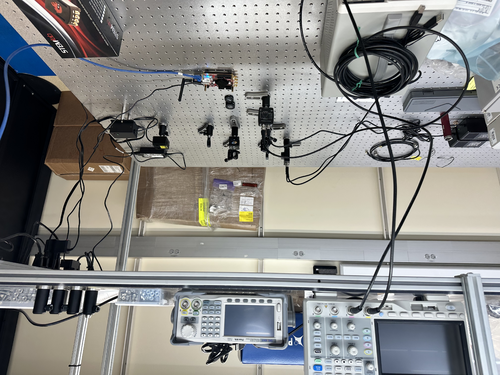
There was a slight problem initially in connecting the SMA to BNC cables from the photodiode to the red pitaya, since the red pitaya was way on the other side of the lab. Cao and I connected the red pitaya to a new ethernet cable that extended far enough for the red pitaya to sit comfortably on the breadboard with the optics.
Right now the PDAs are not connected to the red pitaya. I have connected them to the oscilloscope in order to read out how much voltage they produce upon incidence of 532nm laser light. This was done in order to make sure that they do not surpass the limit of the red pitaya (+-1V). I have not acquired a value for the readout voltage of the PDAs since I had to go to class. I will gather this preliminary data soon. |
| Attachment 1: IMG-0183.jpg
|
|
|
82
|
Thu Apr 27 21:43:07 2023 |
Jon | Physics | VAC | Grounding vacuum system |
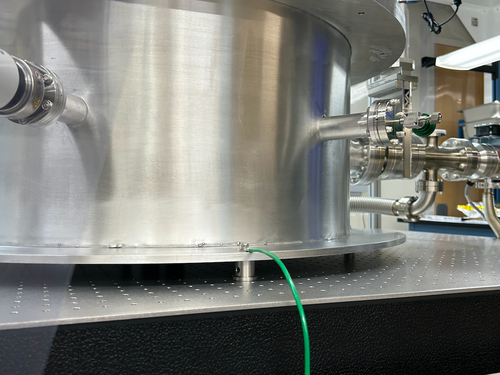
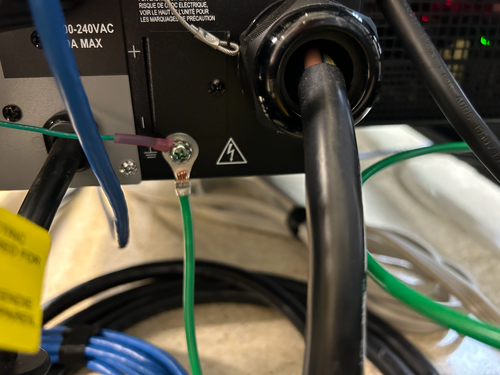
This afternoon I made up a green 10 AWG grounding cable and connected it to the vacuum system.
One end is tightly connected to the bottom flange of the vacuum chamber (photo 1). It is run along and up the table framing to the top of the cleanroom, where it exits into the overhead cable tray in the same location as the other power cables. It drops down from the top of the server rack all the way to the bottom, where the other end is connected to the lab's electrical ground in the rear of the 240 V UPS (photo 2).
The connections were confirmed to be secure, but continuity testing with an ohmmeter remains to be done to confirm that the chamber and tabletop are indeed grounded. |
| Attachment 1: IMG_0141.png
|
|
| Attachment 2: IMG_0140.png
|
|
|
81
|
Thu Apr 27 16:23:44 2023 |
Cao, Pamella and Julian | Physics | VAC | Installing vacuum system (cont.) |
[Pamella, Cao and Julian, Shane]
- Particles account
- 10:37 am: Starting the particles account
- Zone 3:
- 0.3u: 1662
- 0.5u: 872
- 1.0u: 415
- Zone 4:
- 0.3u: 831
- 0.5u: 124
- 1.0u: 0
- 11:14 am: Start removal of calibrated leak to install 45 deg elbow
- 11:21 am: Elbow installed, re-install calibrated leak back on
- 11:29 am: Finished re-install calibrated leak, start installing gate valve on pump line
- 11:47 am: Finished installing gate valve, start installing reducing cross onto gate valve
- 12:02 pm: Finished installing reducing cross, start installing 90 deg elbow to reducing cross
- 12:17 pm: Finished installing reducing cross, lunch break
- 01:24 pm: Come back to the lunch break.
- 01:26 pm: Start installing vacuum hose to elbow.
- 01:40 pm: Finished installing vacuum hose.
- 01:43 pm: Start installing turbo pump.
- 02:00 pm: finished installing turbo pump .
- 02:10 pm: Start installing standard wall hose from turbo pump to scroll pump
- 02:21 pm: finished installing hose onto scroll pump, start installing lid. Remove lid from chamber, insert viton O-ring. Place lid back
- 02:30 pm: Secure lids with screw. Start installing turbo pump controller cable: Pass cable from outside (controller) up the top of clean tent and connect to 8 pin connector on turbo pump
- 03:00 pm: Installing air cooling unit for turbo pump, found 8 M3 screws for air cooling unit in the C&B cabinet to install the fan bracket onto the back of turbo pump. Fan control cable is routed up to the top of the cleanroom to the controller
- 03:15 pm: Installing full-range gauge cable to the controller outside cleanroom. Ethernet cables 1 and 2 are used. Cable 1 is used on the RGA line gauge. Cable 2 is connected to the main body gauge. Cable1 and 2 are connected controller's channel 1 and 2 respectively.
- 04:00 pm: Finish installing gauges cables. Cables are routed up along the frame to the controller sitting outside the cleanroom
- 04:15 pm: Finished. End-of-date particle count
- Zone 3:
- 0.3u: 3699
- 0.5u: 1454
- 1.0u: 872
- Zone 4:
- 0.3u: 1662
- 0.5u: 706
- 1.0u: 290
|
| Attachment 1: IMG_0139.png
|
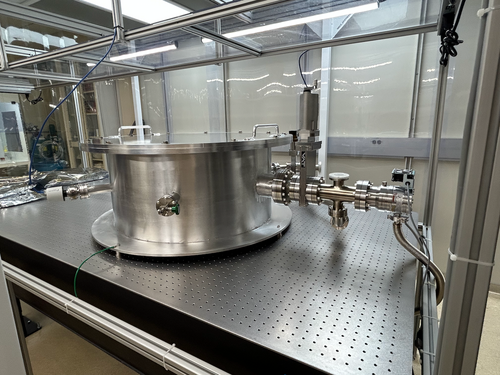
|
| Attachment 2: IMG_0136.png
|
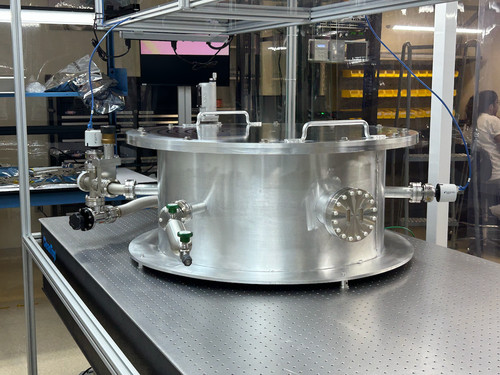
|
|
80
|
Thu Apr 27 09:48:34 2023 |
Aiden | Summary | General | Batch 12 Bagging |
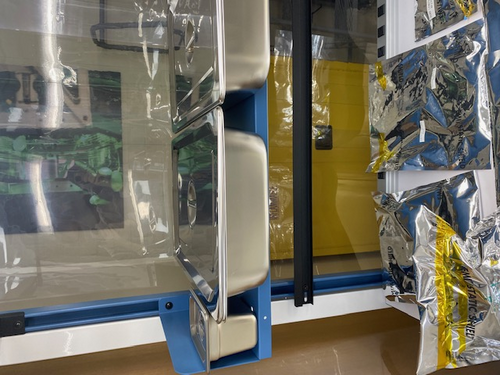
| I took batch 12 out of the oven and put them in a bag and placed the bag inside the clean room in the first large stainless steel container.
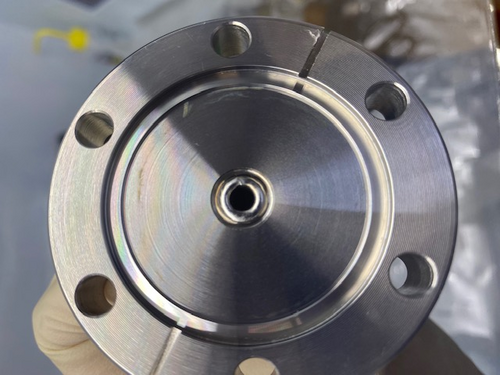
I also looked at the small gauge that we felt like needed to be baked and I can confirm that without further cleaning around the inside of the gauge it should not be connected to the main vacuum. I have attached a photo of the inside of the gauge. |
| Attachment 1: IMG_4279.jpg
|
|
| Attachment 2: IMG_4278.jpg
|
|
|
79
|
Wed Apr 26 18:05:41 2023 |
Pamella, Julian, Shane | Update | Cleanroom | cleanroom particle counts and cleaning log |
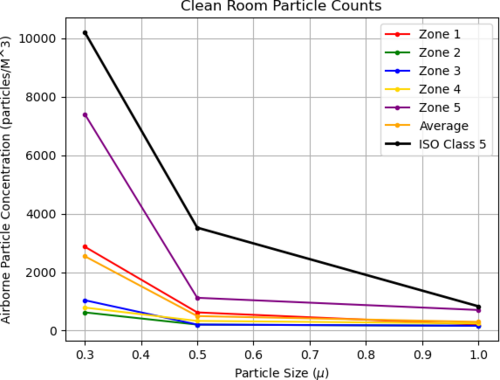
- pre-cleaning particle counts:
- zone 3
- 0.3 mu: 2494
- 0.5 mu: 748
- 1.0 mu 124
- zone 4
- 0.3 mu: 374
- 0.5 mu: 41
- 1.0 mu: 0
- 3:45 pm: Started wiping the surfaces(laser table,chamber, computer) inside the cleaning room.
- 4:05 pm: Finished wiped the surfaces
- 4:08 pm: Began vacuuming cleanroom floor
- 4:28 pm: Finished vacuuming cleanroom floor.
- 4:29 pm: Began mopping the cleanroom floor.
- 5:15 pm: Finished cleanroom clean.
- 6:00 pm: post-cleaning particle counts (full 5 zone measurement) attached below
|
| Attachment 1: counts4_26_23.png
|
|
|
78
|
Tue Apr 25 11:56:37 2023 |
Jon | Update | VLC Electronics | Red Pataya has arrived |
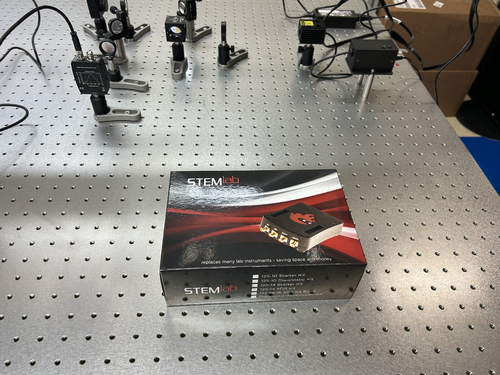
| The Red Pataya 125-14 starter kit that we ordered for locking the 532 nm cavity has arrived. I left it laying on the optical table near the laser. |
| Attachment 1: Red_Pataya.jpg
|
|
|
77
|
Mon Apr 24 17:38:45 2023 |
Aiden | Summary | General | Clean and Bake Batch 12 |
| Today I Bagged and tagged the o-rings from batch 11 and placed them inside the clean room. I also cleaned batch 12 parts in liquinox for 10 minutes and them placed them into the oven where they will undergo the following steps;
1. Ramp to 100 degC in 15 min.
2. Dwell at 100 degC for 30 min.
3. Ramp to 200 deg C in 30 min.
4. Dwell at 200 deg C for 48 hours.
5. Off |
| Attachment 1: IMG_4269.jpg
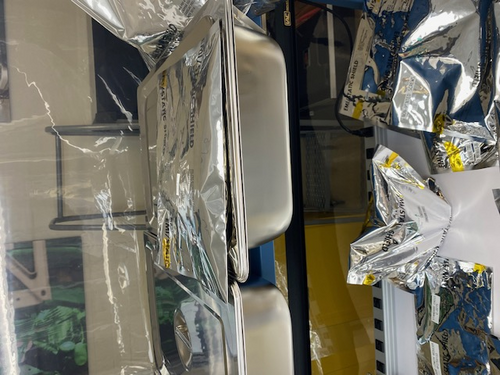
|
|
| Attachment 2: IMG_4268.jpg
|
|
|
76
|
Fri Apr 21 16:51:26 2023 |
Pamella | Update | General | Cleaning cables. |
Cables for the vacuum system.
- Today i wiped, bagged and tagged two cables for the vacuum system. I used IPA wipes for cleaning this two split power cord. I attached a image below.
|
| Attachment 1: IMG_5416.jpeg
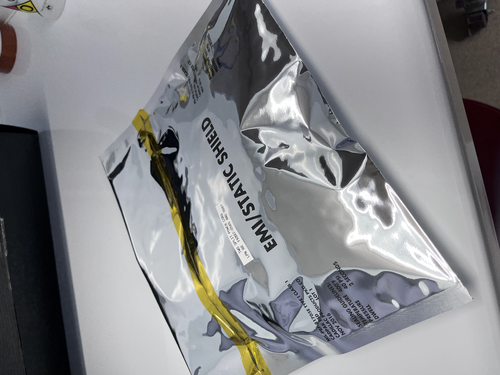
|
|
|
75
|
Fri Apr 21 15:21:18 2023 |
Pamella | Update | FLIR | |
FLIR project updates
- 01:50 pm: Starting test position 34 mm distance to black wall.
- Parameters : 0.100 A, 1.5 V and the temperature inside the mirrors 40°C.
- 2:09 pm : Finished the test and figured out this position it is too far the black wall so now we change for more close position.
- 2:17 pm: Starting test in another position: 10 mm distance to the black wall( this measurement is between the black wall and the aluminum lid)
- 2:26 pm : Finished this second tried and take a snap. The image is attached below.
- The name for the picture for this tried is “AcquisitionImage(Apr-21-2023_14 26)”.
Note: The second tried the temperature didn't up more than 40°C for 8 minutes so I change the current for a few seconds.
I started with 0.98 A with 1.7 V and up until 0.350 A with 2.5 V, just for a few seconds and in this way the temperature up to 72°C and I get the snap.
The next step should be understand the problem with the shape and work in changes for get the triangle in the FLIR image. |
| Attachment 1: AcquisitionImage(Apr-21-2023_14_26).jpg
|
.jpg.png "AcquisitionImage(Apr-21-2023_14_26).jpg")
|
|
74
|
Fri Apr 21 00:06:43 2023 |
Jon | Update | VAC | Vacuum prep and installation - parts have arrived |
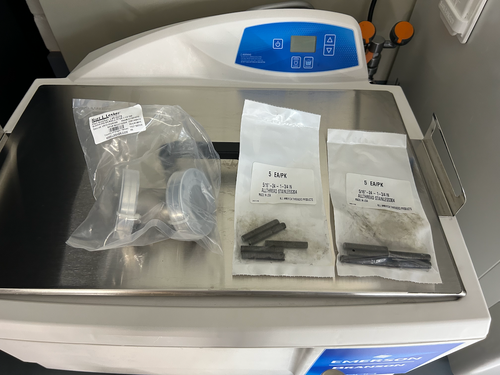
The two parts needed to complete the vacuum assembly (ELOG 70) have arrived.
- (10) 5/16"-24 x 1 3/4" threaded rods - for attaching the turbo pump reducing nipple to the CF 4.5" gate valve;
- (1) 45 degree CF 2.75" elbow for attaching the calibrated Ar/He leak to the chamber.
I left them laying on top of the ultrasonic washer. They both need to cleaned and baked following the standard procedure for stainless steel, as the threaded rods are visibly dirty. |
| Attachment 1: SS_parts.png
|
|
|
73
|
Wed Apr 19 17:39:50 2023 |
Pamella | Update | FLIR | FLIR project |
FLIR project updates- Initial tests
- 10:00: Starting test in position 2 cm to the black wall.
- Parameters : 0,305 A, 05,5 V and the temperature inside the mirrors 141,8°C.
- 10:23 Finished this first tried and take snap. The image is attached below.
- The name for the picture for this tried is “AcquisitionImage(Apr-19-2023_10 23)”.
- 10:37. Starting test in another position now 3 cm distance to the black wall ( this is more close than the original position.)
- Parameters : 0,348 A, 05,5 V and the temperature inside the mirrors 160,3°C.
- 10:57 Finished this second tried and take a snap. The image is attached below.
- The name for the picture for this tried is “AcquisitionImage(Apr-19-2023_10 57)”.
- 11:03 Starting test another position 1.3 cm distance to black wall.
- Parameters : 0,347 A, 05,5 V and the temperature inside the mirrors 158,7°C.
- 11:18 Finished this second tried and take a snap. The image is attached below.
- The name for the picture for this tried is “AcquisitionImage(Apr-19-2023_11 18)”.
The next step should be fix the problem with the shape (aluminum foil lid).
|
| Attachment 1: AcquisitionImage(Apr-19-2023_10_23)(1).jpg
|
(1).jpg.png "AcquisitionImage(Apr-19-2023_10_23)(1).jpg")
|
| Attachment 2: AcquisitionImage(Apr-19-2023_10_57)_(1).jpg
|
_(1).jpg.png "AcquisitionImage(Apr-19-2023_10_57)_(1).jpg")
|
| Attachment 3: AcquisitionImage(Apr-19-2023_11_18)_(2).jpg
|
_(2).jpg.png "AcquisitionImage(Apr-19-2023_11_18)_(2).jpg")
|
|
72
|
Mon Apr 17 17:06:49 2023 |
Aiden | Summary | General | Clean and Bake batch 11 |
| Cleaned the Viton O-Ring for the main chamber in Liquinox for 10 minutes. Then put it in the oven to back for;
1. Ramp to 100 degC in 15 min.
2. Dwell at 100 degC for 30 min.
3. Ramp to 180 degC in 30 min.
4. Dwell at 180 degC for 24 hours.
5. Off
Note: There were three viton -rings in the bag sent to us. I cleaned and baked 2 of them and left the third in the bag. |
| Attachment 1: IMG_4262.jpg
|
|
|
71
|
Wed Apr 12 16:17:50 2023 |
shane | Update | General | Particle Counter moved |
| With the added height of the new docking station, the particle counter no longer fits under the Windows monitor in the electronics rack and has been moved to the desk in the corner of the lab. |
| Attachment 1: IMG_6693.HEIC
|
|
70
|
Wed Apr 12 16:13:19 2023 |
Cao | Physics | VAC | Vacuum prep and installation |
Aiden, Pamella, Peter, Shane, Cao
Today we started vacuum chamber assembly work
- 10:16 am: Particle count measurement of clean room
- 10:34 am: Particle counting finished: meets ISO 5 standard
- Zone 3 :
- 0.3 u: 3159
- 0.5 u: 789
- 1.0 u: 83
- Zone 4 :
- 0.3 u: 498
- 0.5 u: 41
- 1.0 u: 0
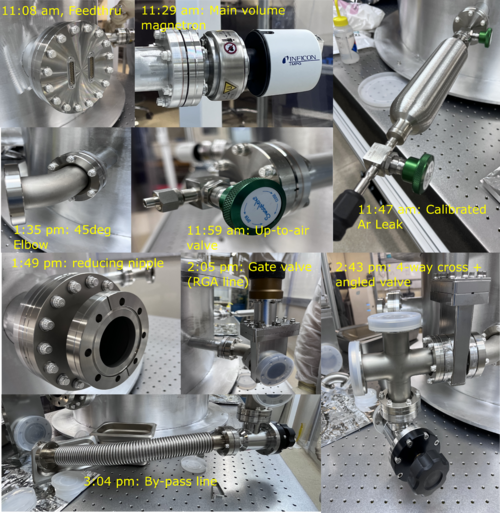
- 10:45 am: Assemble vacuum feedthrough
- 11:08 am: Finish assembling feedthrough
- 11:14 am: Assemble inverted magnetron pirani gauge
- 11:29 am: Finish assembling magnetron gauge
- 11:31 am: Assemble calibrated Ar Leak
- 11:47 am: Finish assembling Ar leak
- 11:49 am: Assemble up to up-to-air valve
- 11:59 am: Finish assembling up-to-air valve
- 12:00 pm: Break for Lunch
- 1:00 pm: Came back from lunch
- 1:20 pm: Assemble 45 degree elbow [RGA Line]
- 1:35 pm: Finish assembling 45 degree elbow
- 1:35 pm: Assemble Reducing nipple [Pump Line]
- 1:49 pm: Finish assembling Reducing nipple
-
1:53 pm: Attempt to install gate valve [Pump line] but bolts could not fit to the gap between 2.5" reducing nipple (0.95" length, shortest 5/16 bolt is 1.5" in total length).
Thickness of of CF flange on reducing nipple is 0.75" inch. Ideally, we want to have 0.2" engagement to the gate valve, thus0.95" + 0.25" head thickness = 1.2" > 0.95" gap.
We thus most likely will need a replacement for the reducing nipple. We decided we would hold up on installing the rest of the pump line until we have got components to fix this problem
- 2:05 pm: Assemble gate valve [RGA line]
- 2:15 pm: Finish assembling gate valve [RGA line]
- 2:18 pm: Assemble 4-way cross [RGA line]
- 2:30 pm: Finish assembling 4- way cross [RGA line]
- 2:37 pm: Assemble manual bellow sealed angle valve [RGA line]
- 2:43 pm: Finish assembling sealed angle valve [RGA line]
- 2:45 pm: Assemble inverted magnetron pirani gauge [RGA line]
- 2:55 pm: Finish assembling magnetron pirani gauge [RGA line]
- 2:56 pm: Assemble vacuum hose, thin wall [RGA line]
- 3:04 pm: Finish assembling vacuum hose, thin wall [RGA line]
- 3:45 pm: Packing up for the the day
- 4:00 pm: End-of-date particle count measurement
- Zone 3
- 0.3 u: 1080
- 0.5 u: 124
- 1.0 u: 83
- Zone 4
- 0.3 u: 540
- 0.5 u: 83
- 1.0 u: 83
|
| Attachment 1: VacAssy230412.png
|
|
|
69
|
Wed Apr 12 10:53:02 2023 |
Aiden | Summary | General | Valve Cleaning |
| Bagged and Tagged the parts from batch 10 and placed them inside the clean room.
Then cleaned the last gate valve in liquinox for 20 minutes (10 minutes each side). Then dried the valve, bagged, tagged, and placed it inside the clean room. |
|
68
|
Tue Apr 11 17:56:15 2023 |
Pamella | Update | General | Lab cleaning |
| Today Pamella and Julian finished cleaning of the cleanroom, starting with the HEPA vacuuming, mopping and clearing all floor with IPA wipes. Also we wiped down some surfaces of the blue table, computer table and the top of chamber. |
|
67
|
Tue Apr 11 13:15:40 2023 |
Cao | Infrastructure | Clean & Bake | Nitrogen gas tank replaced |
| The nitrogen gas tank has been replaced with a new unit. The new tank is ultra pure nitrogen (>99.9% nitrogen).
The new tank has been placed and secured to the rack where the old one is; cap is removed and regulator is reinstalled onto the new tank. |
|
66
|
Fri Apr 7 09:48:09 2023 |
Pamella | Update | General | Clean the system parts |
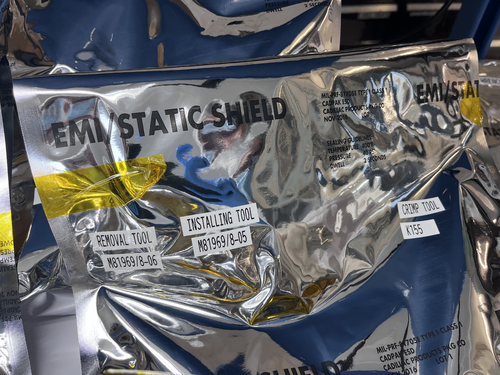
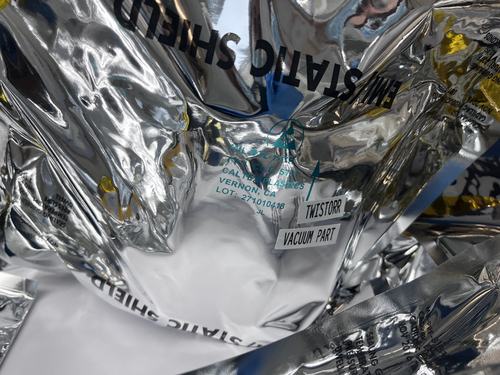
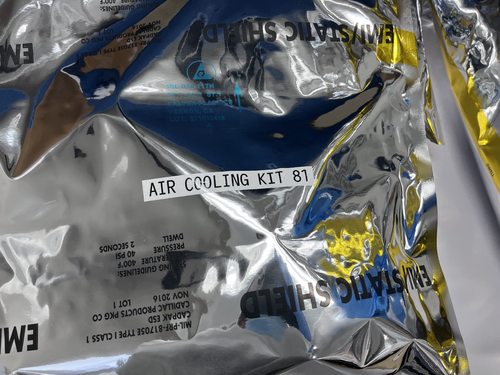
| Pamella and Julian wiped and tag system parts for the vacuum machine. We used isopropyl and vectra wipes in the most import pieces:
Inverted magnetron pirani gauge and the air cooling kit 81. The other parts we uses the IPA wipe for cleaning.
So for now we finished with ever system parts which was in the gabinetes.
I put photos below. The photos is for all part we cleaning, tag and which puted inside the cleaning room. |
| Attachment 1: 645E597D-AEA6-4669-B967-08C82AA84D13.jpeg
|
|
| Attachment 2: 2669F0AC-69BC-422B-8723-AD047F3EBEB6.jpeg
|
|
| Attachment 3: 7731FE17-EDD2-46B4-B6E1-546531D98EC3.jpeg
|
|
| Attachment 4: F8921950-63C3-4E03-B79E-0A4C8EDB8EF6.jpeg
|
|
| Attachment 5: AA9374DB-377C-48BD-866B-D686AF945D09.jpeg
|
|
| Attachment 6: B3CE9D1E-A01E-4747-9F01-D427097F340C.jpeg
|
|
| Attachment 7: BAE63151-D3D1-41D9-881E-B6175544811C.jpeg
|
|
|
65
|
Thu Apr 6 10:20:43 2023 |
Peter | Update | VLC Update | Laser intensity/polarization drift measurements |
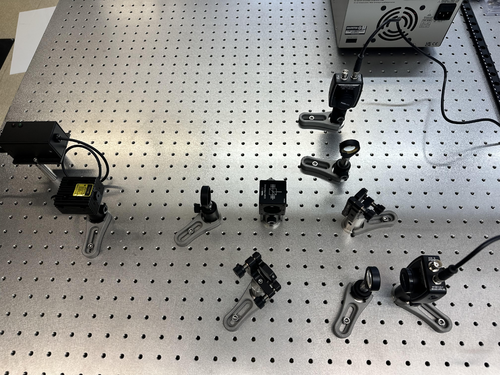
| More optical components were added to the optical set up for laser intensity / polarization drift measurements. Both lenses and both PDs were added to the configuration, as seen in the image below. The beam is already well aligned into the center of both of PDs, and focused nicely by the lens.
Both PD's take BNC connecting cables, and the Red Pitaya takes SMA connecting cables. Since we are currently without a BNC to SMA cable, and we do not want to cut, strip, and crimp what we have, then measurement process cannot proceed until we get the cables. |
| Attachment 1: Optical_Setup_4-6-23.jpg
|
|
|
64
|
Tue Apr 4 16:52:08 2023 |
Jon | Update | Cleanroom | Particle counter docking station |
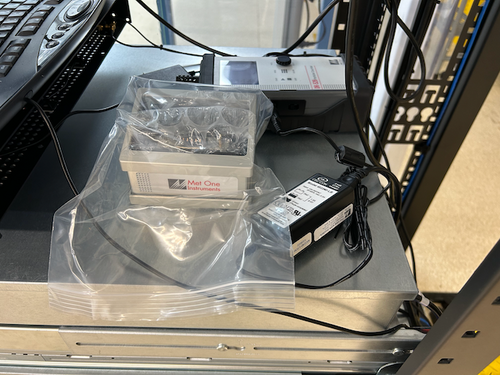
| Due to the problems we have encountered trying to serially communicate directly with the Met One DR-528 particle counter, I went ahead and ordered the add-on communications/charging dock. The dock "ethernetizes" the serial communications by wrapping them in TCP packets and transmitting them over the lab network. This will allow our Python code to communicate using the standard Internet sockets package, rather than PySerial, PyNut, etc.
the docking station arrived today and I delivered it to the lab. I left it laying next to the particle counter in the electronics rack. |
| Attachment 1: Met_One_Dock.png
|
|
|
63
|
Tue Apr 4 16:43:53 2023 |
Jon | Update | VLC Electronics | Additional Thorlabs PDA10A2 |
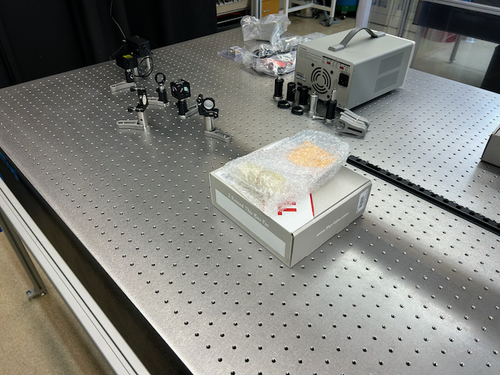
| I ordered a second PDA10A2 and mounting post + spacer (which puts the aperture at the VLC's standard 3" beam height). These arrived today and I delivered them to the lab. They are sitting on the VLC table near the laser. |
| Attachment 1: PDA10A2.png
|
|
|
62
|
Tue Apr 4 09:53:37 2023 |
Peter | Update | VLC Update | Laser intensity/polarization drift measurements |
| The set up for the next round of beam characterization measurements has begun. The beam is initially passing through a half waveplate, is split at a polarizing beam splitter, and then stirring mirrors are used to properly aim the beam into photodiodes (not yet installed). This is the current configuration of the set up. |
| Attachment 1: initial_Intens_measure_set_up.jpg
|
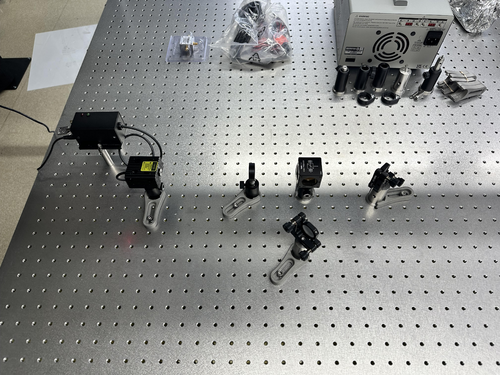
|
|
61
|
Tue Apr 4 09:39:58 2023 |
Peter | Update | VLC Electronics | 532 M2 Measurements |
| Final M squared measurements were taken Wednesday, 3/29/23 by Peter and Ryan Hinosawa. 5 separate sets of data were taken, and upon discussion, we declared the plots shown below in attachment 1 and 2 as the final plots of our M squared measurements.
The optical design of the M squared measurement process is given in attachment 3. The laser and three lenses shown below are mounted on the optical table. The track is placed behind the third lens, and the camera is moved along the track to take successive measurements of the beam's width. This will allow us to see a change in the beam's width over its propagation direction.
The raw data is given in attachment 4 as a Beam_Data_8_3lens.txt file. This is eventually what gets used to generate the plots shown below.
The code to run the analysis on these measurements (as well as analysis on the Gaussian intensity profile fitting) can be found:
git@git.ligo.org:uc_riverside/visible-light-cavity.git |
| Attachment 1: OmegaY_M2_Fit_8.pdf
|

|
| Attachment 2: OmegaX_M2_Fit_8.pdf
|

|
| Attachment 3: M2_Measurements_Set_Up.svg
|

|
| Attachment 4: Beam_Data_8_3lens.txt
|
z-z0	x_width	y_width	x_error	y_error
-50	267	304	30	30
-40	227	261	30	30
-30	192	223	30	30
-20	167	194	30	30
-10	153	169	50	50
0	149	154	50	50
10	166	152	50	50
20	198	169	50	50
30	233	195	50	50
... 17 more lines ...
|
|
60
|
Mon Apr 3 17:04:05 2023 |
Aiden | Summary | General | IDP Scroll Pump Assembly |
| Aiden installed the isolation valve and the exhaust silencer kits on the IDP-3 Scroll pump. The entire assembly still needs to be wiped down but overall no residue came off when putting on the kits. |
| Attachment 1: IMG_4244.jpg
|
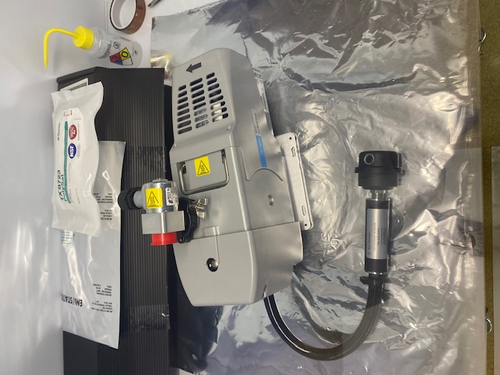
|
|
59
|
Fri Mar 31 14:23:13 2023 |
Pamella | Update | General | Clean and bake batch 11 |
| Today I bagged and tagged batch 11. I wiped the some tools: Centering ring alum( 2 pieces), reversible ratcheting, gasket removal (CF). After wiped that I bagged and tagged this parts and put inside the cleanroom.
Also I wiped one power cable (3 meters), bagged and tagged that and inside the cleanroom.
I put photo below. |
| Attachment 1: 4AC705B8-D906-47E3-86E4-49E4967910E7.jpeg
|
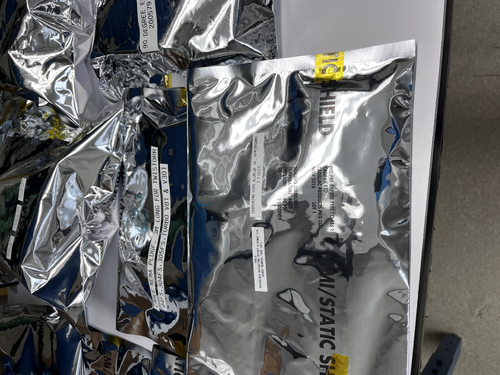
|
|
58
|
Wed Mar 29 16:00:36 2023 |
Pamella | Update | Cameras | FLIR project |
|
Today Pamella and Tyler started work in the updates for the FLIR project.
We trie for the first time cover the mirrors with aluminum foil and run the code with this.
We work in figured out how the python codes works with real datas.
To do:
Understand how get the real datas and how to compere that with the old datas.
Starting test with the FLIR and mirrors with aluminum foil in with the power on.
Testing the FLIR camera more times with the mirrors covered with aluminum foil. |
| Attachment 1: 15D13FE3-48A9-4ACF-9422-07032DD8D028.jpeg
|
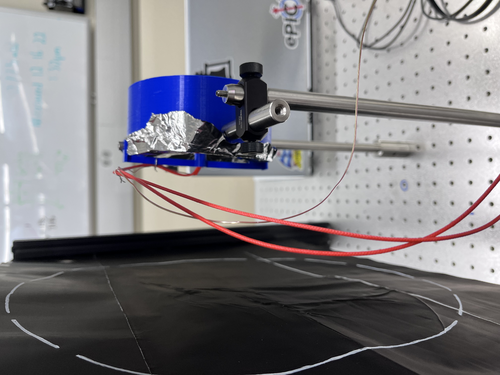
|
|
57
|
Fri Mar 24 13:36:17 2023 |
Pamella | Update | General | Clean and Bake batch 10 |
| Today I bagged and tagged batch 10.
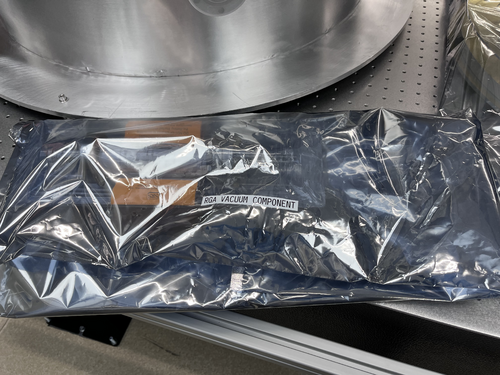
I wiped the RGA vacuum component for around 25 minutes after that I bagged and tagged this part and put inside the cleanroom. The RGA vacuum component have a big size and because off that i used the big bag.
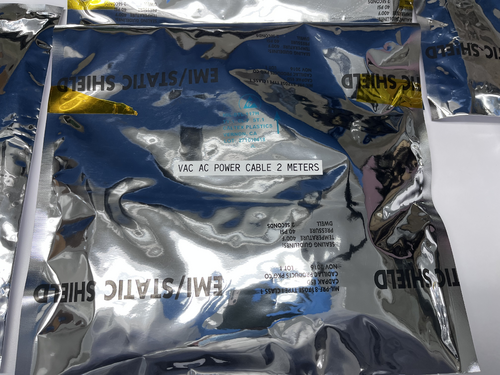
I wiped one power cable (2 meters), bagged and tagged that and inside the cleanroom.
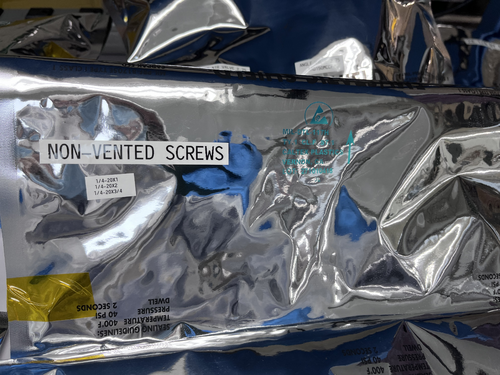
For the parts in the oven, a bunch of screws, I bagged and tagged the screws and put inside the cleanroom.
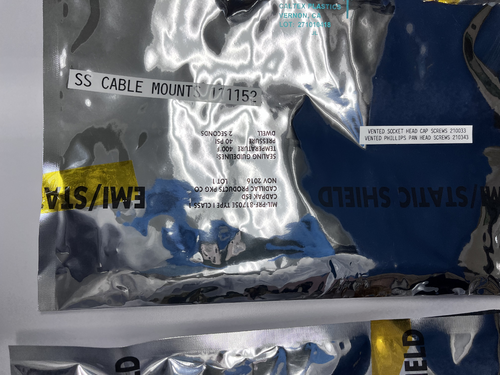
I put photos below about this process. |
| Attachment 1: 260AEB73-02D0-4635-93B3-B2EB3269FB84.jpeg
|
|
| Attachment 2: 59FD199A-A444-439A-8D51-C242B65BBECD.jpeg
|
|
| Attachment 3: 9A48A0EE-5EFE-409D-ACC0-17011F6F7EBF.jpeg
|
|
| Attachment 4: 950F85B7-D304-4724-AB3D-B606E422F1E3.jpeg
|
|
|
56
|
Fri Mar 24 07:14:38 2023 |
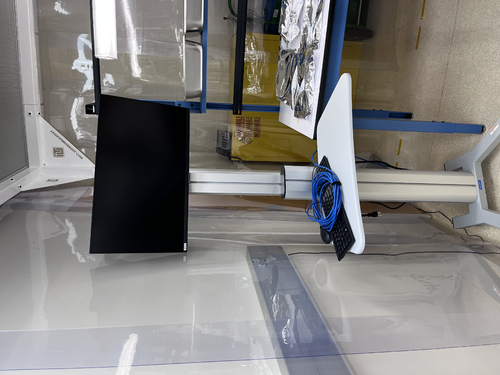
Jon | Infrastructure | Computers | Workstation 2 (ws2) mounted on cleanroom cart |
| The ws2 cart has been thoroughly wiped down with IPA wipes and moved inside the cleanroom. I have reconnected it to power and Ethernet (cables bundled and ran to the server rack just outside the cleanroom). It is ready for use.
| Quote: |
The Linux workstation (ws2) that used to sit on the blue workbench (now inside the cleanroom) has been mounted on a mobile cart, as pictured below. This is intended to be a clean cart that will be housed inside the cleanroom.
The cart is currently dirty and will need to be throughly wiped down (along with the computer monitor and peripherals) prior to being moved into the cleanroom. Once the cleaned cart has been moved inside, it should never be brought back outside the cleanroom and should never be touched with ungloved hands.
I also upgraded the OS to Debian 11.6 and upgraded the CDS workstation tools. |
|
|
55
|
Thu Mar 23 18:40:08 2023 |
Julian | Update | General | Cleanroom Update |
| Today Pamella and I came in to Hepa vacuum and mop the floor of the cleanroom for general maintenance. |
|
54
|
Wed Mar 22 15:25:00 2023 |
Shane | Update | General | Clean room recertification particle counts |
| Attached are the five zone particle measurements for the clean room now that the fan speeds have been set to MEDIUM. 2 min sample time, 3 samples per zone. The occupied clean room measurements were unusual in that they generally got larger towards minute 6 instead of settling and going to zero, and for this reason didn't stay beneath the class 5 requirement at the end of the samples. The unoccupied counts look more similar to what was expected, and generally settle under the class five requirement. |
| Attachment 1: counts3.22.23.pdf
|

|
|
53
|
Wed Mar 22 12:16:20 2023 |
Jon | Infrastructure | Cleanroom | Experimenting with HEPA fan speeds |
Jon, Cao
In effort to try to reduce the noise level inside the cleanroom, we have dialed all four HEPA fan-filter units (FFUs) down from HIGH to MEDIUM speed. These dials can only be accessed from inside the cleanroom, by bringing in the large ladder and opening adjacent ceiling tiles.
We tested three configurations, in each case with all the FFUs on either HIGH (initial state), MEDIUM, or LOW. We measured the ambient noise in each configuration.
| Fan speed |
Noise inside cleanroom (dB) |
Noise outside cleanroom (dB) |
| HIGH |
80 |
70 |
| MEDIUM |
74 |
66 |
| LOW |
71 |
66 |
Going from HIGH to MEDIUM yields the largest improvement, reducing the ambient sound intensity by 6 dB (i.e., by a factor of 4, corresponding to a ~35% reduction in perceived volume).
An additional 3 dB of noise reduction can be achieved by further reducing the fan speeds to LOW. However, even after allowing some extended settling time (few hours), we found the particle counts to be fluctuating right at the threshold zone for ISO Class 5. Thus we dialed the fan speeds back up to MEDIUM with the expectation that this will be sufficient for Class 5 performance.
The cleanroom now needs to be recertified with a fresh round of five-zone particle count measurements. |
|
52
|
Fri Mar 17 19:46:39 2023 |
Aiden | Summary | General | Clean and Bake batch 9 |
| Bagged and Tagged the reflector arms and bases and placed them inside the clean room. Total of 2 bags used. Cleaned and Baked parts in batch 9 on the spread sheet and used the following procedure;
1. Ramp to 100 degC in 15 min.
2. Dwell at 100 degC for 30 min.
3. Ramp to 200 degC in 30 min.
4. Dwell at 200 degC for 48 hours.
5. OFF
Also soaked the 2.75" CF gate valve in acetone to try and clean the open threads around the part. Then cleaned it in the ultrasonic washer with liquinox for 20 minutes (10 minutes each side). It looks better than it used to but the threads still seem to be the problem and will probably need even further cleaning. |
| Attachment 1: IMG-4208.jpg
|
|
| Attachment 2: IMG-4209.jpg
|
|
|
51
|
Tue Mar 14 18:21:41 2023 |
Aiden | Summary | General | Clean and Bake batch 8 |
| Starting off Peter and I refilled the deionized water barrel.
Then Aiden Cleaned and Bake the FROSTI arms and bases in liquinox for 5 minutes. Then placed them in the oven where they will undergo the following steps;
1. Ramp to 100 degC in 15 min.
2. Dwell at 100 degC for 30 min.
3. Ramp to 120 degC in 30 min.
4. Dwell at 120 degC for 48 hours.
5. OFF
Also cleaned the 2.75 MDC Gate valve for 20 minutes (10 minutes each side) in liquinox. It looks significantly cleaner in areas I could not reach before. However some areas like the flat bottom threaded holes are still very dirty. I also made sure to dry it thoroughly and wrapped it in UHV foil until I further cleaning is decided. |
|
50
|
Fri Mar 10 12:08:09 2023 |
Peter | Update | VLC Electronics | 532 M2 Measurements |
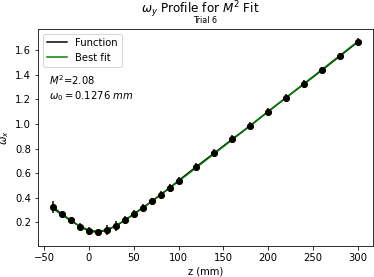
| Took more M2 laser data today. The configuration is the same as before except now the beam camera is the only component moving. Pictures can be seen below. The beam shape in x and y is very consistent with low error. However, the M2 value is still a bit high. |
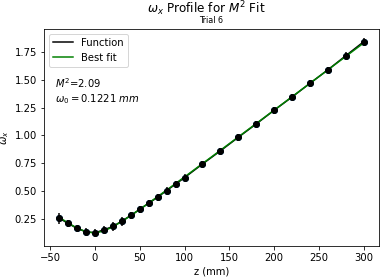
| Attachment 1: OmegaX_M2_Fit_4.png
|
|
| Attachment 2: OmegaY_M2_Fit_4.png
|
|
|
49
|
Thu Mar 9 13:51:42 2023 |
Shane | Update | General | Clean room counts 3/9/23 |
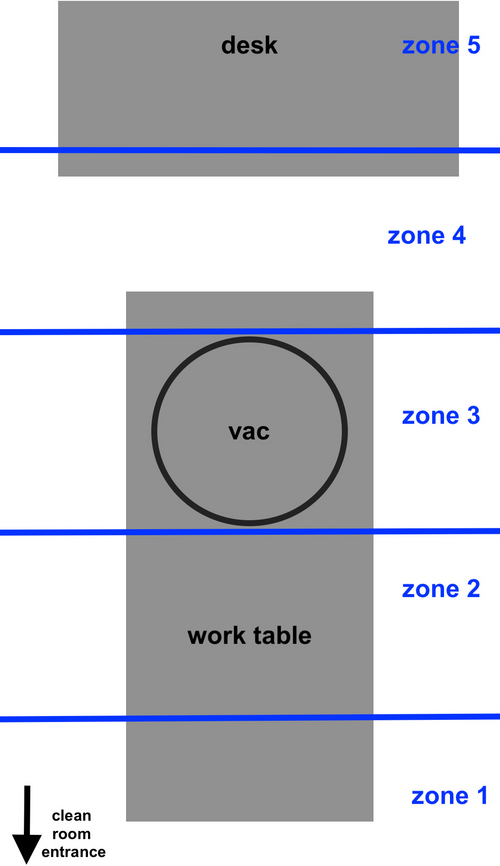
| Here's the clean room counts from this morning. Also attached is rough diagram of where the five zones are in the clean room. Counts taken with 2 minute sample time, three samples in each zone. |
| Attachment 1: particlecounts3.9.23.pdf
|

|
| Attachment 2: clean_room_zones.JPG
|
|
|
48
|
Thu Mar 9 12:03:59 2023 |
Peter | Update | VLC Electronics | 532 M2 Measurements |
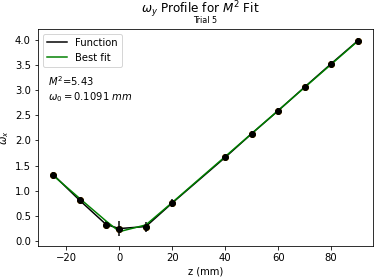
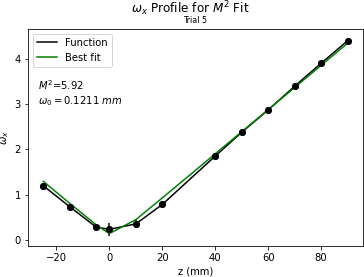
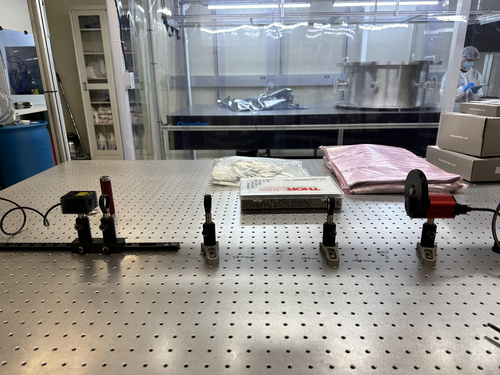
| Took more M2 Data today. Picture of the optical set up is shown below. lens1 f = 100mm, lens2 f = 50mm, lens3 f = 150mm. There was a nice converging/diverging beam profile, and the beam waist was able to be read by the camera. I took as much data as I could before clipping loss. The M2 value is quite high. |
| Attachment 1: OmegaY_M2_Fit_3.png
|
|
| Attachment 2: OmegaX_M2_Fit_3.png
|
|
| Attachment 3: optical_setup.jpg
|
|
|
47
|
Wed Mar 8 19:29:00 2023 |
Aiden | Summary | General | Clean and Bake batch 7 |
| Today gave another cleaning to the MDC gate valve. It is still very dirty an will need more cleaning. I also cleaned the other 3 valves and the argon leak. These are also in bags inside the clean room. I cleaned them by hand with IPA wipes and had to specifically give the MDC up to air valve a harder clean with acetone as it was not getting clean with the IPA. This valve still has a ring around the face as shown in the first image. Be very cautious when moving the parts in the large ESD bag, it may be heavy and the parts will move inside. |
| Attachment 1: IMG_4180.jpg
|
|
| Attachment 2: IMG_4182.jpg
|
|
|
46
|
Wed Mar 8 18:35:52 2023 |
Pamella | Update | | Lab cleaning |
| Today Pamella finished cleaning of the cleanroom, starting with the HEPA vacuuming, mopping and clearing all floor with IPA wipes.
Also Pamella and Julian finished cleaning of lab floor, starting with the HEPA vacuuming and mopping.
Shane and Pamella wiped down every surfaces of the laser table, computer table and the table with the vacuum pieces inside the cleanroom.
Shane, Peter, Tayler, Pamella and Julian then wiped down every surface of the laser table outside the cleanroom. We wiped the main tabletop as well as the legs and all parts for the table. We wiped the computer desk, the boxes, the cabinets and every part outside the cleanroom. For now we finished the lab cleaning. |
|
45
|
Mon Mar 6 18:48:43 2023 |
Pamella | Update | General | Cleanroom update |
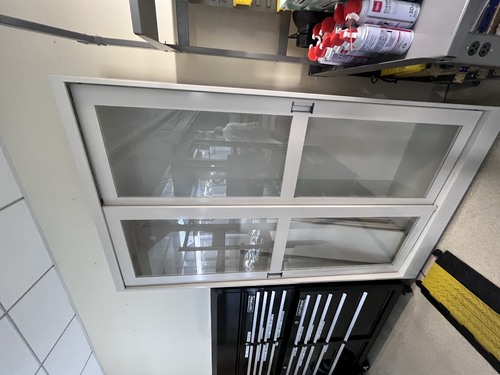
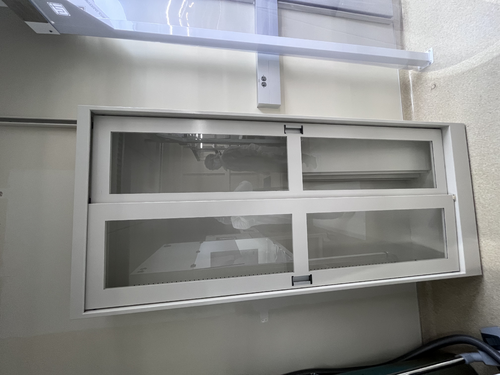
| Today Pamella and Julian finished cleaning of the new lab cabinets. Also we wiped the computer and put inside the cleanroom so now the computer is not move out side anymore.
We saw some dirty parts in the cleanroom floor again and is possible for the next step we should be clearing the floor one more time.
Possible is necessary order more IPA wipes for keep cleaning in nexts weeks.
A photos of the cabinets and the computer are attached below. |
| Attachment 1: 203863E0-106A-465E-8D9C-461B0358FB60.jpeg
|
|
| Attachment 2: 779F360D-CAD0-4C49-AE0B-973F97F6D099.jpeg
|
|
| Attachment 3: 276B9F0C-6661-441F-AD34-D79DA61E1FC3.jpeg
|
|
|
44
|
Mon Mar 6 15:32:58 2023 |
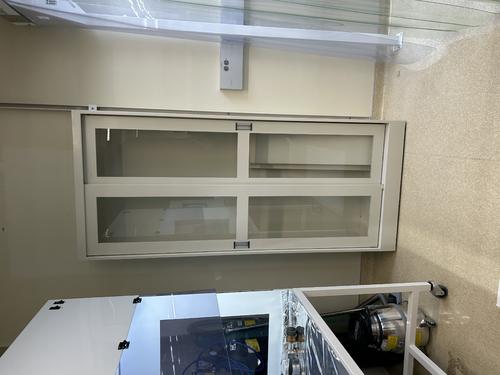
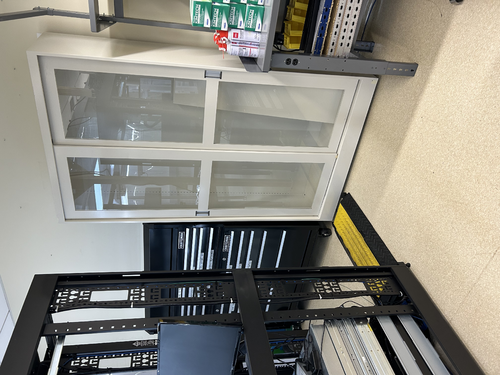
Jon | Infrastructure | General | Cabinet installation completed |
Jon, Cao, Peter
This morning Facilities delivered and installed two new cabinets with sliding glass doors.
The smaller of the two (36" W x 13" D x 84" H) has been installed in the Clean & Bake area adjacent the flow bench. The larger one (48" x 16" D x 84" H) has been installed in the back of the room next to the electronics bench. Both cabinets have been securely anchored to the wall in two places each for earthquake safety.
We also installed the sliding glass doors and leveled them. However, we have not installed any of the shelves yet because the cabinets are quite dirty from the installation. Everything needs to be wiped down with IPA wipes, and it will be easier to do that before the shelves are in place. |
| Attachment 1: IMG_0088.jpg
|
|
| Attachment 2: IMG_0089.jpg
|
|
|
43
|
Sat Mar 4 00:34:46 2023 |
Julian | Update | General | Cleanroom Update |
| Today I was able to finish cleaning the frame of the laser table, and for good measure I wiped down the tabletop and exterior of the vacuum chamber when I was finished. I was also able to go through and wipe down the bags containing the vacuum parts as well as the tabletop of the workbench. |
|
42
|
Fri Mar 3 19:13:33 2023 |
Aiden | Summary | General | Clean and Bake Batch 6 |
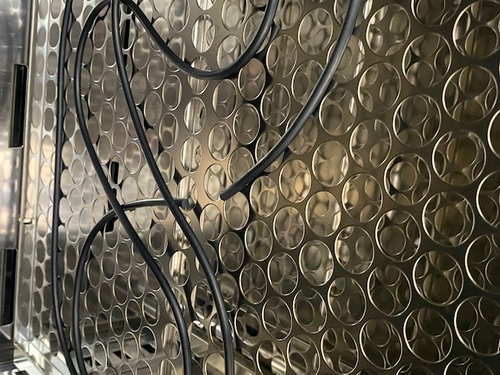
| Started to clean the dirtiest of the valves. I could not finish but I definitely made good progress on it. The MDC valve is very dirty and there are many places I could not reach with my fingers. I used Acetone and IPA for this first round of cleaning on it.
I also was going to bag the viton O-Ring from the previous Batch, however it seems to have broken during the bake and I am leaving it inside the oven for now. |
| Attachment 1: IMG_4173.jpg
|
|
| Attachment 2: IMG_4174.jpg
|
|
|
41
|
Thu Mar 2 20:53:56 2023 |
Julian | Update | General | Cleanroom Update |
| Today Pamella and Julian began the final cleaning of the cleanroom, starting with the HEPA vacuuming and mopping then wiping down every surface of the laser table. We wiped the main tabletop as well as the legs, but we were unable to completely wipe down the upper frame of the table before we had to leave. For next steps, Julian will come in on Friday and finish cleaning the frame, then both of us will come in on Monday to finish the final cleaning. |